

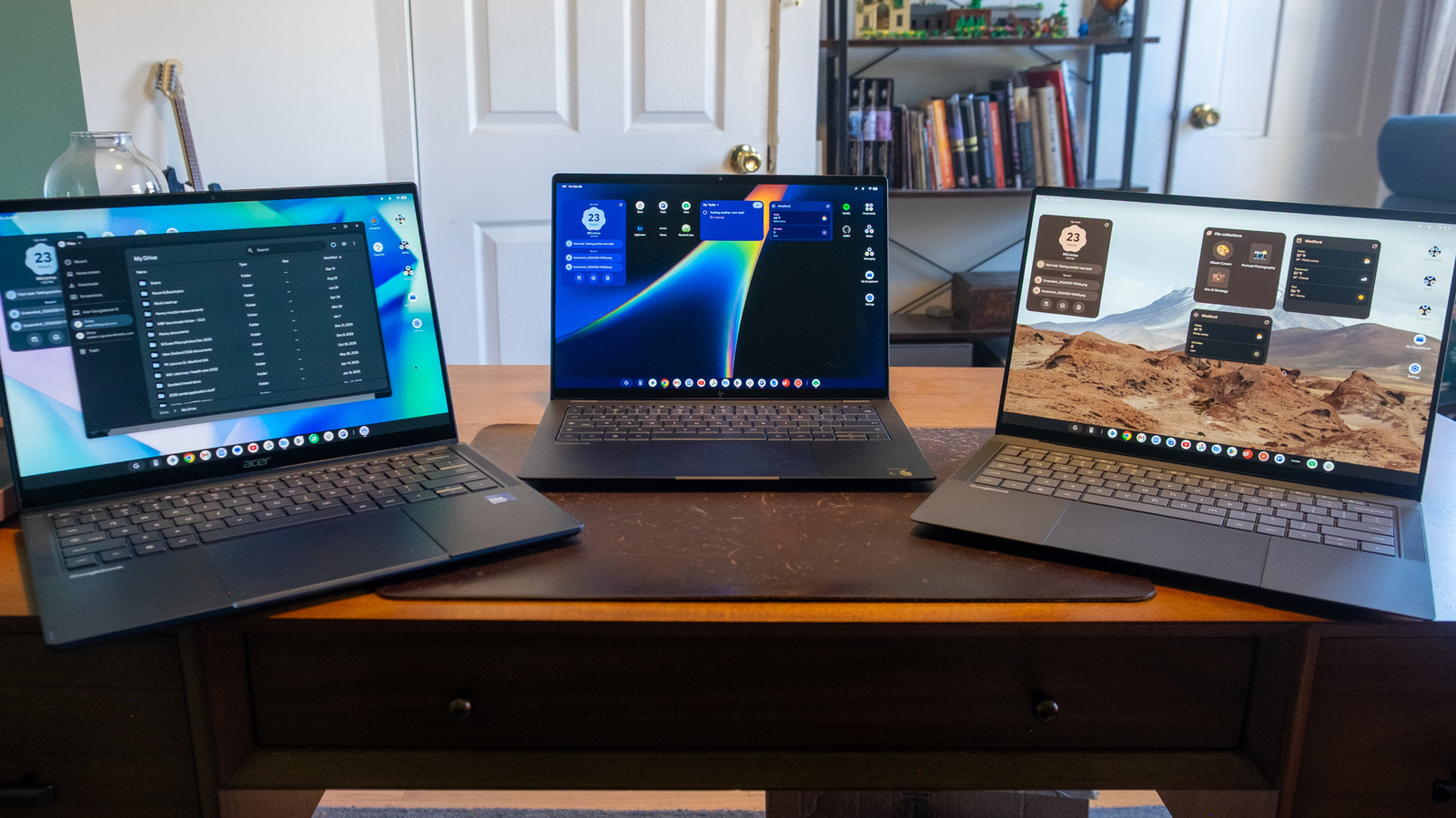
Just as on Chromebooks, Googlebooks give you two main options for apps: web-based tools or Android apps from the Google Play Store. It’s been about 10 years since Google first put the Play Store on Chromebooks, and it was a pretty big deal then to expand the laptop beyond its “just a browser” reputation. Ten years later, though, and on a new platform, many of the same issues persist.
The biggest issue by far is that Android developers have never embraced building apps for larger screens. That situation has improved over the years, as many apps can dynamically adjust to fill a bigger display. But too many apps just stretch a view that works on a phone over a much bigger space without taking advantage of it.
Going back to Slack again, I considered using the Android app when the web app wouldn’t install properly. But while the desktop version of Slack has a multi-column view that’s essential for keeping up with a busy workplace, the Android app only shows you one view at a time, regardless of how big your screen is. Slack supports a much better large-screen view on the iPad, so there’s no reason they couldn’t do so here as well. It’s just that Android tablets and Chromebooks have never gotten attention from developers. As long as that’s the case, chances are good your favorite Android app won’t feel quite at home on a Googlebook.
To be clear, though, the situation is definitely better than it was a decade ago. Google used its launch of the Pixel Tablet in 2023 to revamp its core set of apps for bigger screens, and now many of those apps feel right at home on a Googlebook. Android versions of Keep, Google Home, Calendar, Photos, Google TV and numerous others work well after you install them.
Google is also doing its best to push people towards web apps when they’re better suited. Installing Google Chat from the Play Store sets up the web-based app, for example, and the Gmail shortcut in the taskbar opens your account in its own window but with the same familiar Gmail web interface. It’s always been a bit confusing to know whether you should install an app from the Play Store or use its web-based counterpart — but in the case of Google’s own apps at least, the Play Store knows which kind is best to install for a Googlebook.
And while many third-party apps don’t take advantage of larger screens, there are also plenty that do. Todoist and Spotify are native to the Googlebook and display multiple columns of info, while Adobe Lightroom pulled up my library quickly and synced edits I made on the Googlebook back to my Mac without any hiccups.
But of course, there are likely apps you use on Windows or Mac that won’t be available here. There might be substitutes, but you won’t be able to install things like Adobe Premiere or Logic Pro here. And while most people can do most things through a browser or via the Android apps you can get on a Googlebook, the question remains what the benefits are for moving your workflow to a totally new platform that might not have all the apps you need.
Native gaming, of course, is a bit of a non-starter as well. Sure, you can install games from the Play Store — I checked out Teenage Mutant Ninja Turtles: Shredder’s Revenge and Limbo, and they ran without issues. Shredder’s Revenge even had keyboard controls already mapped out. But these aren’t exactly new or cutting-edge titles.
One nice perk that Google is including with Googlebooks is a year of GeForce Now “Fast Pass” access. GeForce Now lets you stream games you own from storefronts like Steam and the Epic Games Store, and the “Fast Pass” here provides up to 50 hours of gaming per month. There are also no ads like you get in the normal free GeForce Now tier, and it gives you priority access as well (hence the name). Obviously, this doesn’t replace a proper gaming PC, but it does provide you with an option for playing on a Googlebook as long as you have an internet connection.